How to manage billing and your plan?
View your current subscription, upgrade or downgrade your plan, manage payment methods, check usage, and configure auto top-up for credits.
You can find this in the menu: Sidebar > Settings > Billing
Before you start
- You are signed in to your Allen account.
Follow these steps
Open Billing settings
Go to Settings (bottom of your sidebar) and click the Billing tab.
View your current plan and usage
The Billing page shows which plan you're on, how many credits you've used, and any limits that apply to searches, email sends, or storage.
Upgrade or change your plan
If you want more features or higher limits, use the upgrade options on this page. Allen will walk you through the payment flow.
Manage payment methods
Update your payment card or payment method from this page. You can also see your payment history and past invoices.
Configure auto top-up
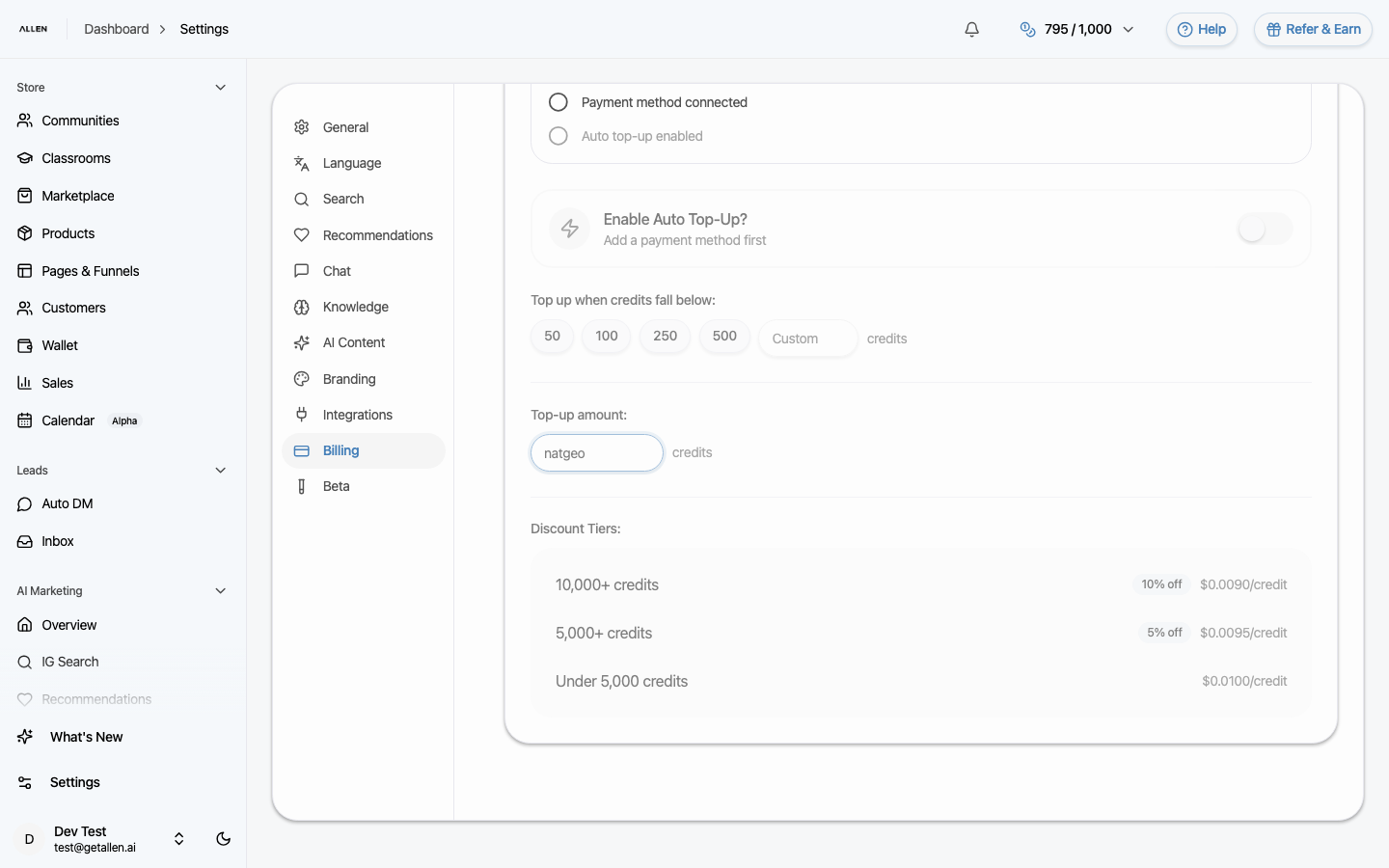
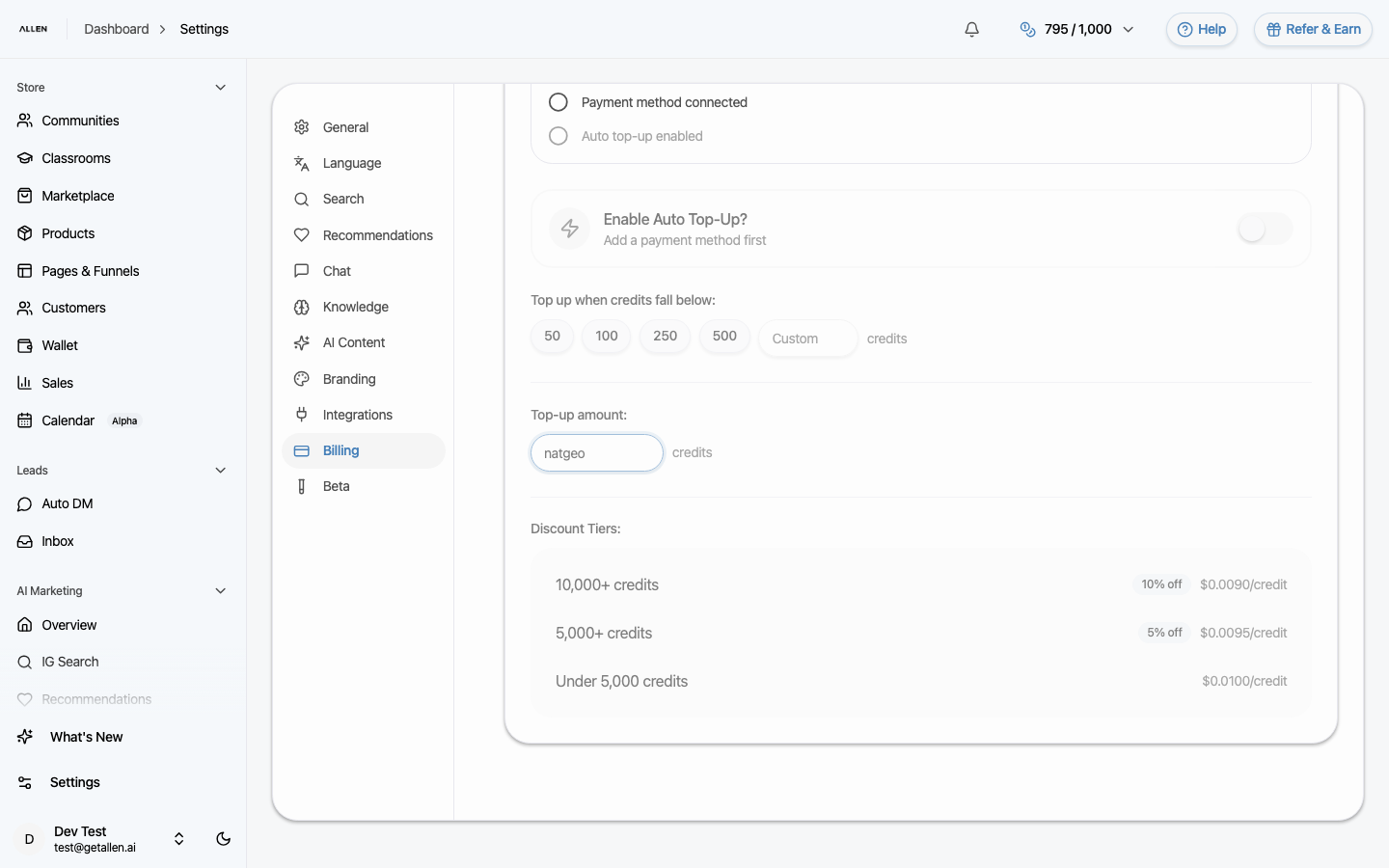
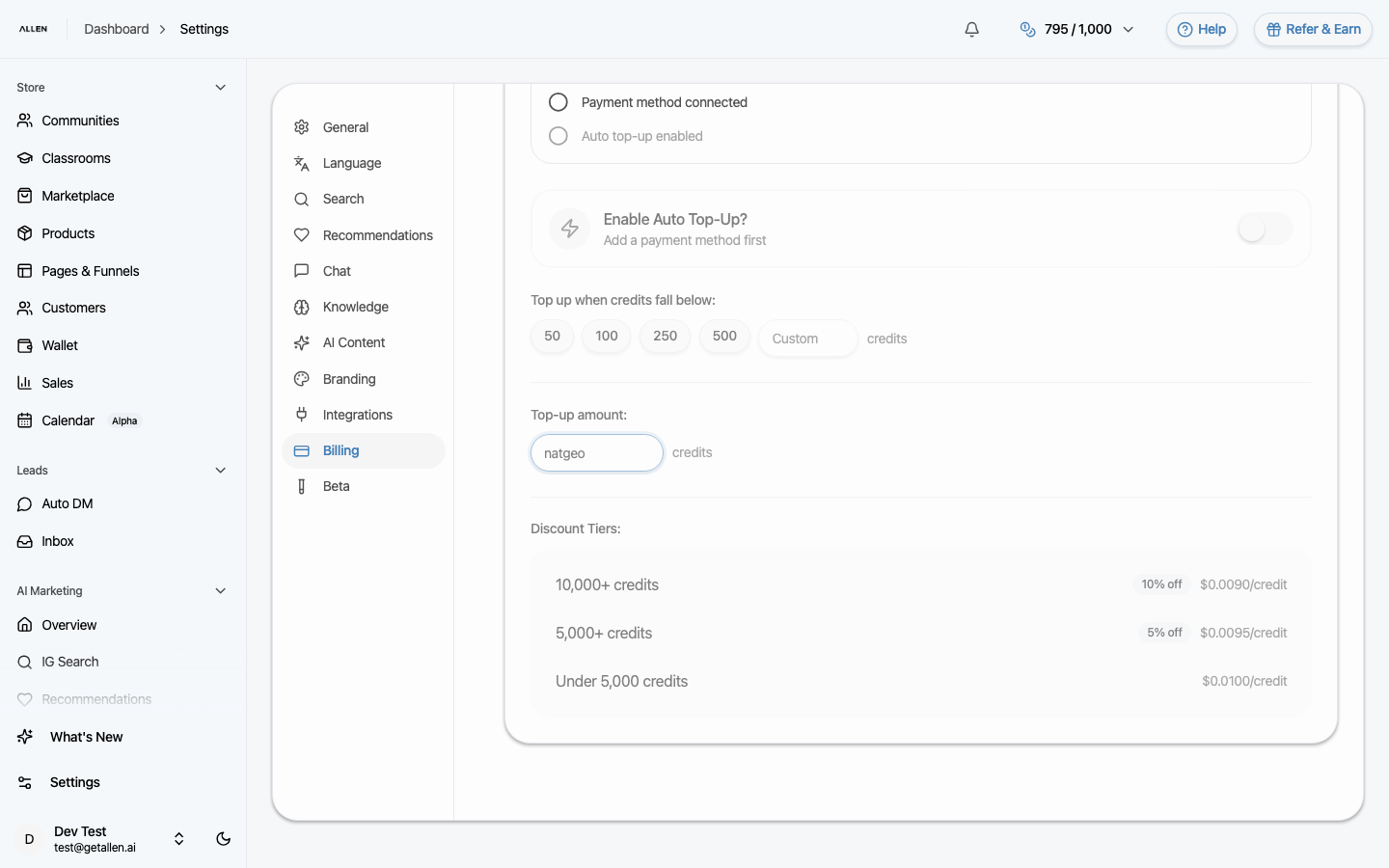
If you use credits for AI features, you can enable auto top-up so your account automatically purchases more credits when you run low.