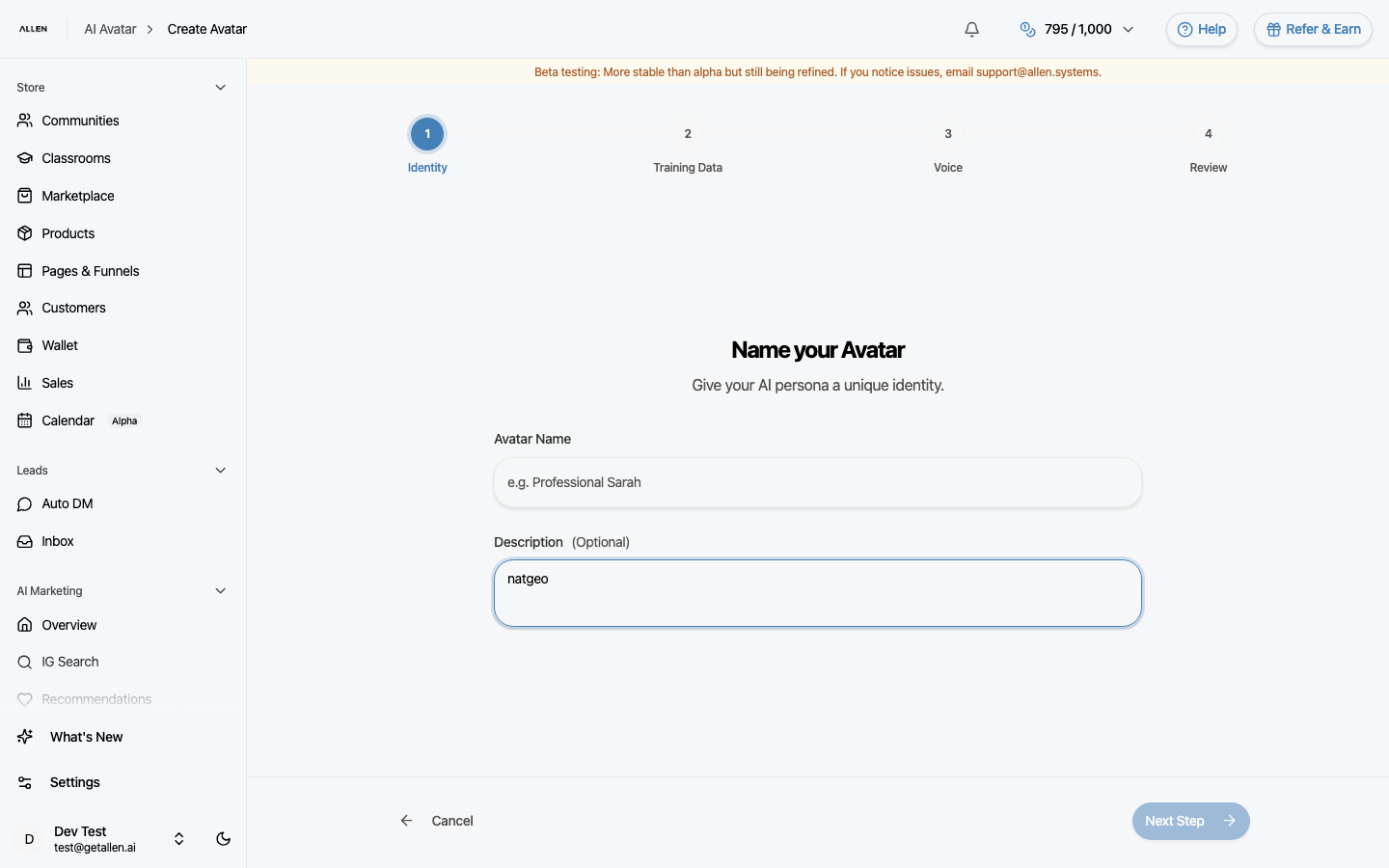
How to create an AI avatar?
Walk through the four-step process to create and train your personal AI avatar: set its identity, upload training images, choose a voice, and start training.
You can find this in the menu: Sidebar > AI Marketing > AI Avatars > Create
Before you start
- You are signed in to your Allen account.
- You have an active subscription.
- You have several clear photos or video clips of yourself for training.
Follow these steps
Start the creation flow
Go to AI Avatars in your sidebar and click the create button. A multi-step wizard opens.
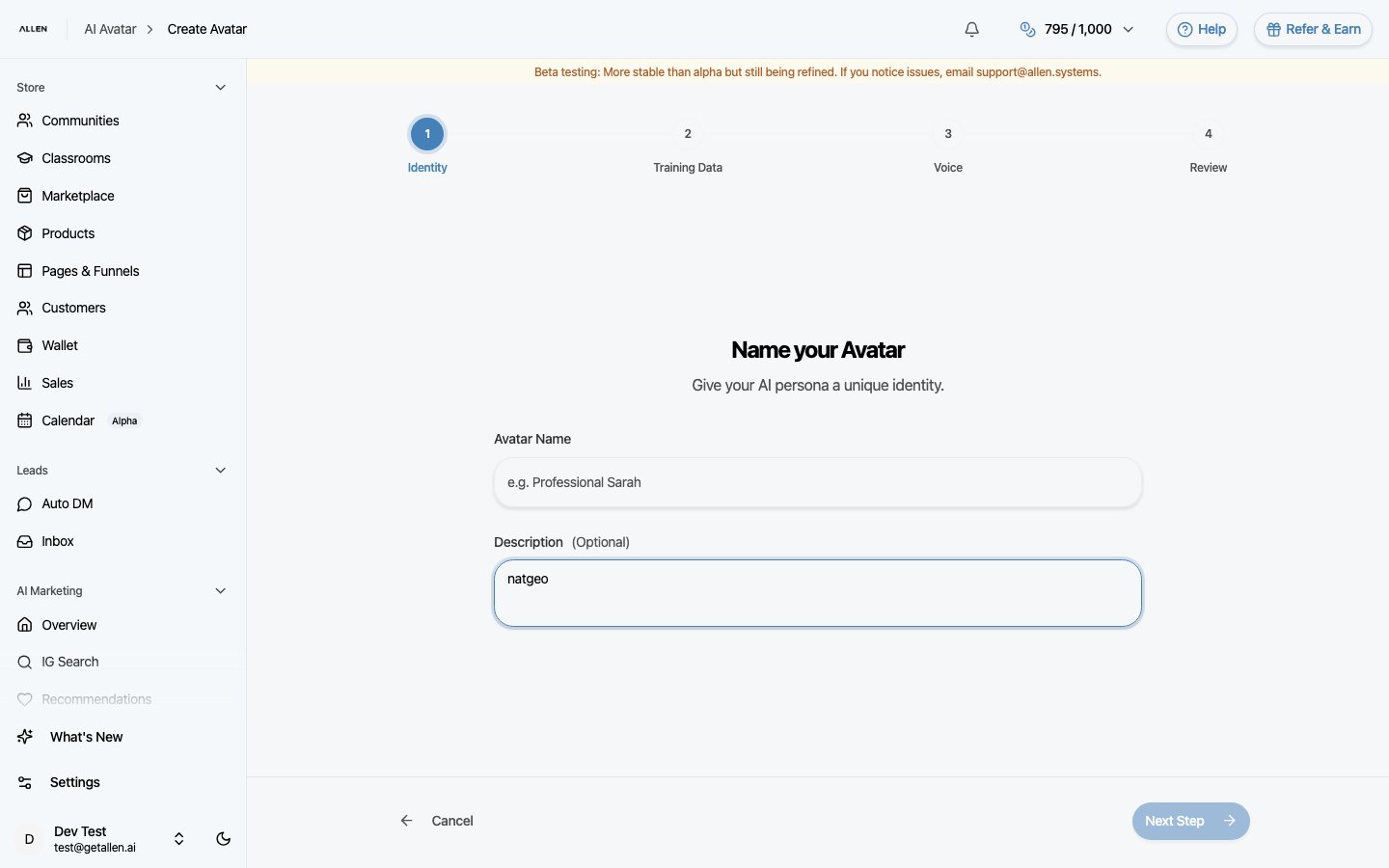
Step 1 — Identity
Enter a name and any identity details for your avatar. This helps you identify it if you create multiple avatars later.
Step 2 — Training Data
Upload reference images or video clips of yourself. Use clear, well-lit photos showing your face from different angles. The better the training data, the more realistic your avatar will look.
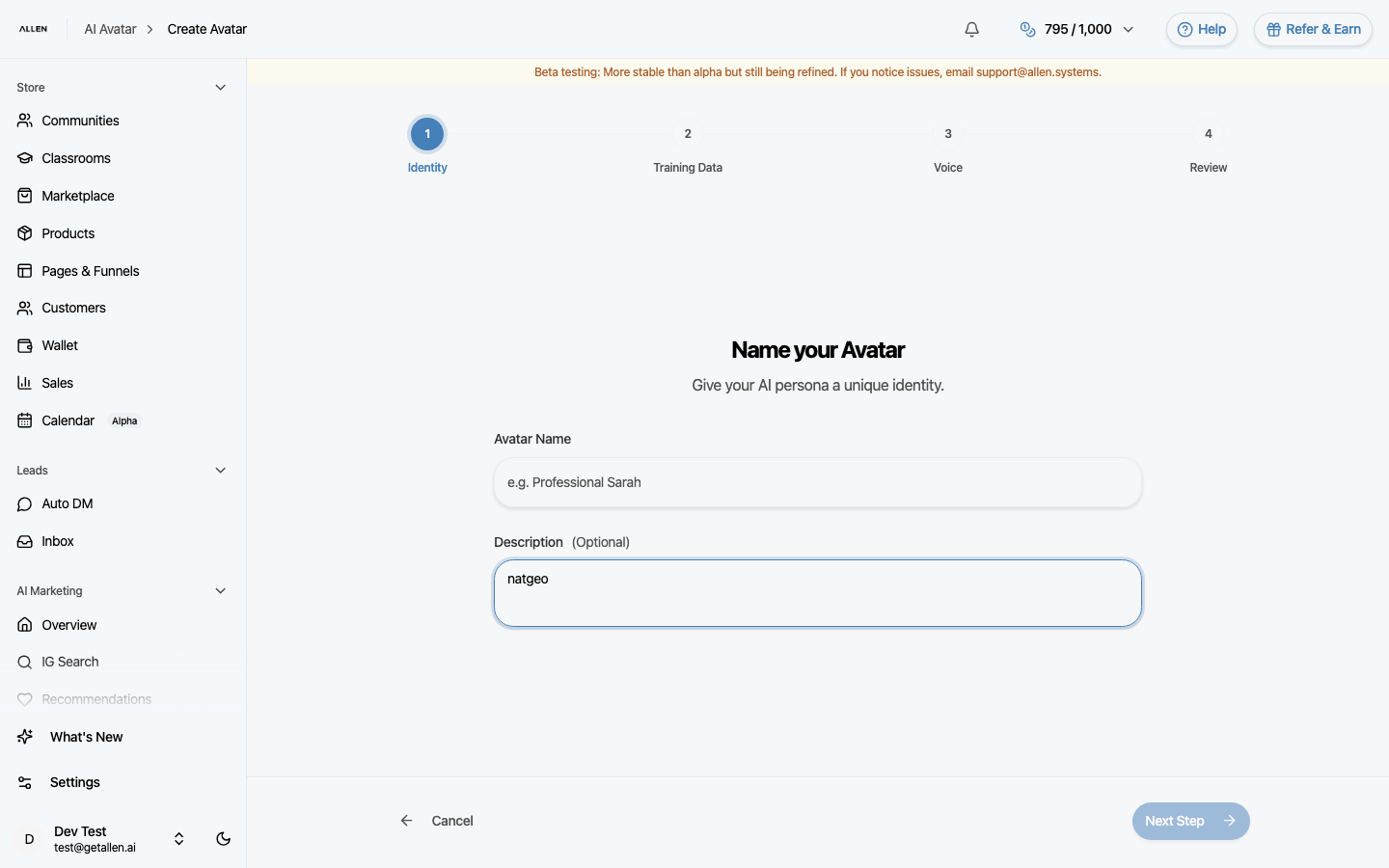
Step 3 — Voice
Select a voice for your avatar. Pick from the available stock voices, or if you've already cloned your voice in the Voices section, select it here.
Step 4 — Review and train
Review all your settings — identity, images, and voice. When everything looks right, click the button to start training. Allen begins processing your avatar.