How to search for an Instagram profile?
Use IG Search to find and analyze Instagram profiles, hashtags, or keywords. Allen pulls post data and generates insights you can use for your marketing strategy.
You can find this in the menu: Sidebar > AI Marketing > IG Search
Before you start
- You are signed in to your Allen account.
- You have an active subscription.
Follow these steps
Open IG Search
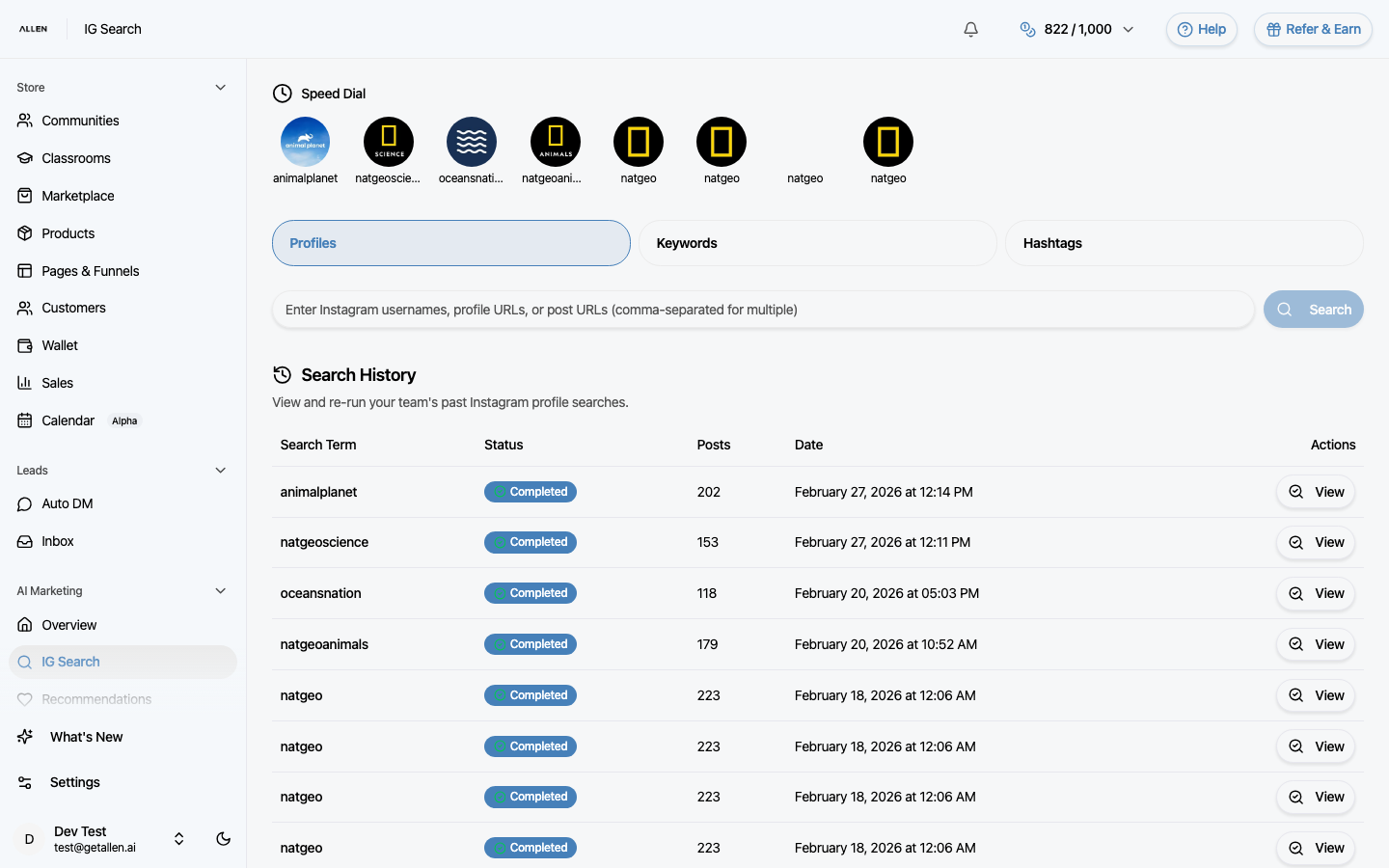
In your sidebar, click IG Search under the AI Marketing section.
Choose a search type
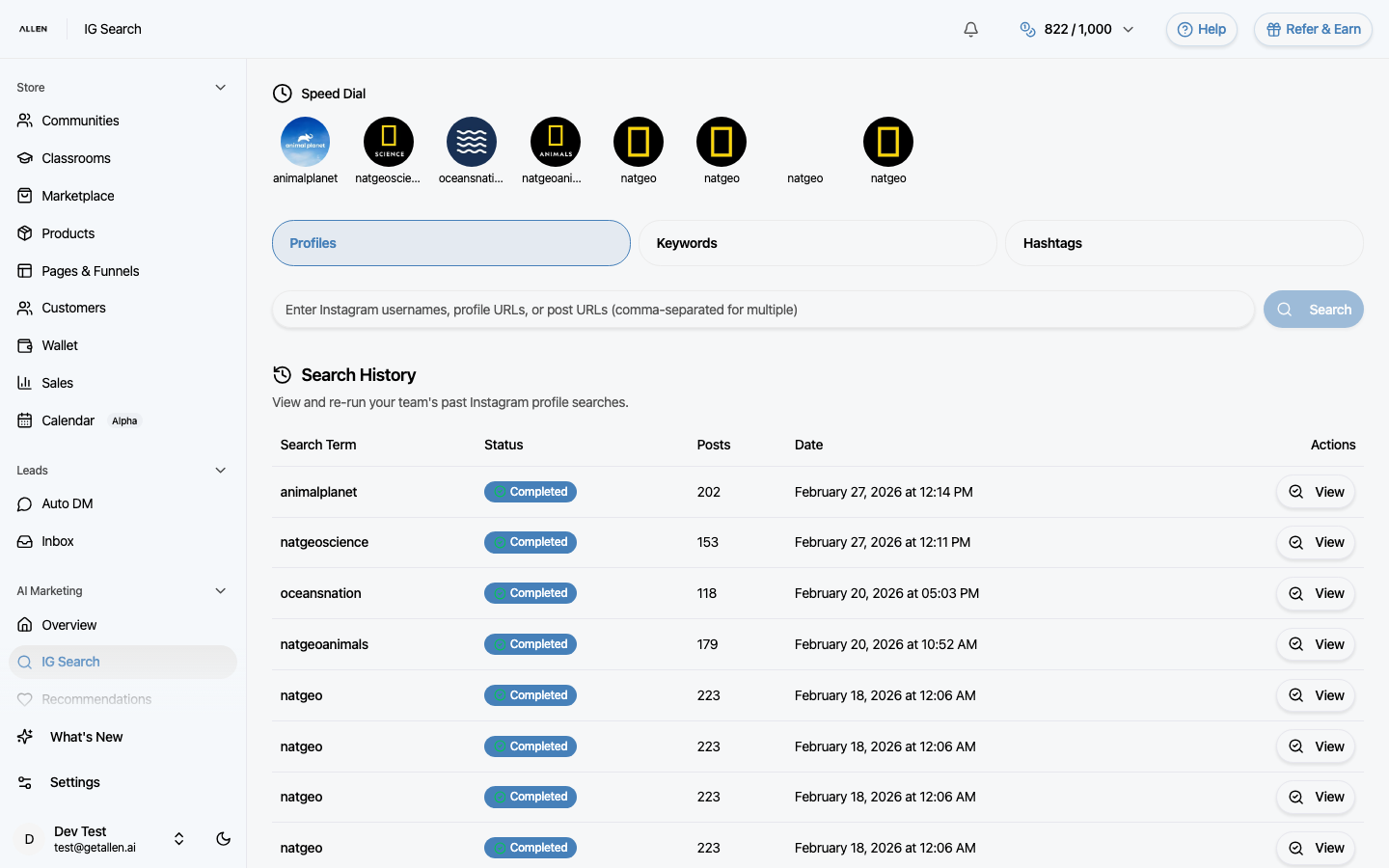
Pick the tab that matches what you want to find. Use Profile to search by username or profile link. Use Keyword to search by topic. Use Hashtag to search by hashtag.
Enter your search and run it
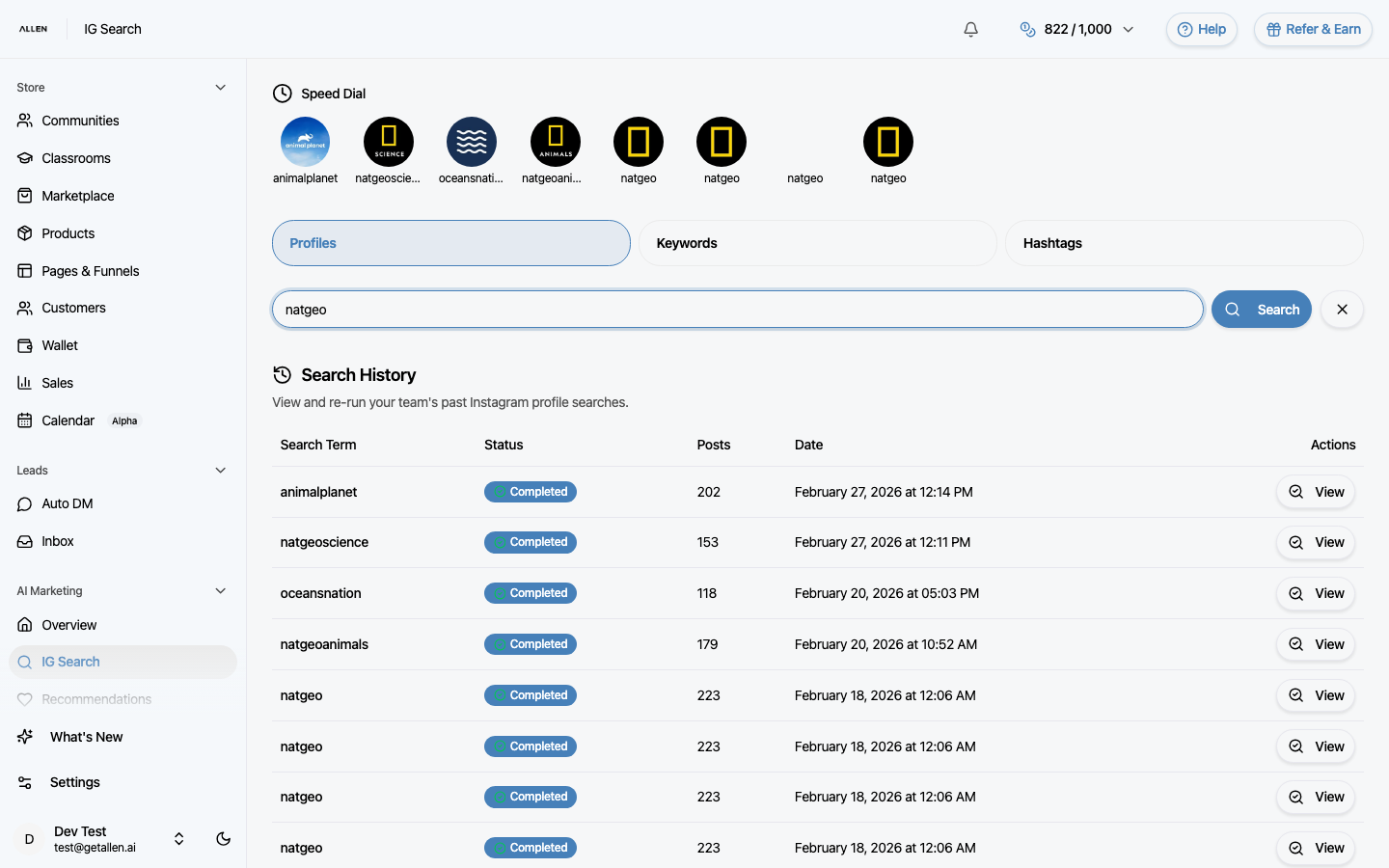
Type a username, profile URL, post link, keyword, or hashtag into the search field. For example: natgeo. Then click the Search button.
Review results
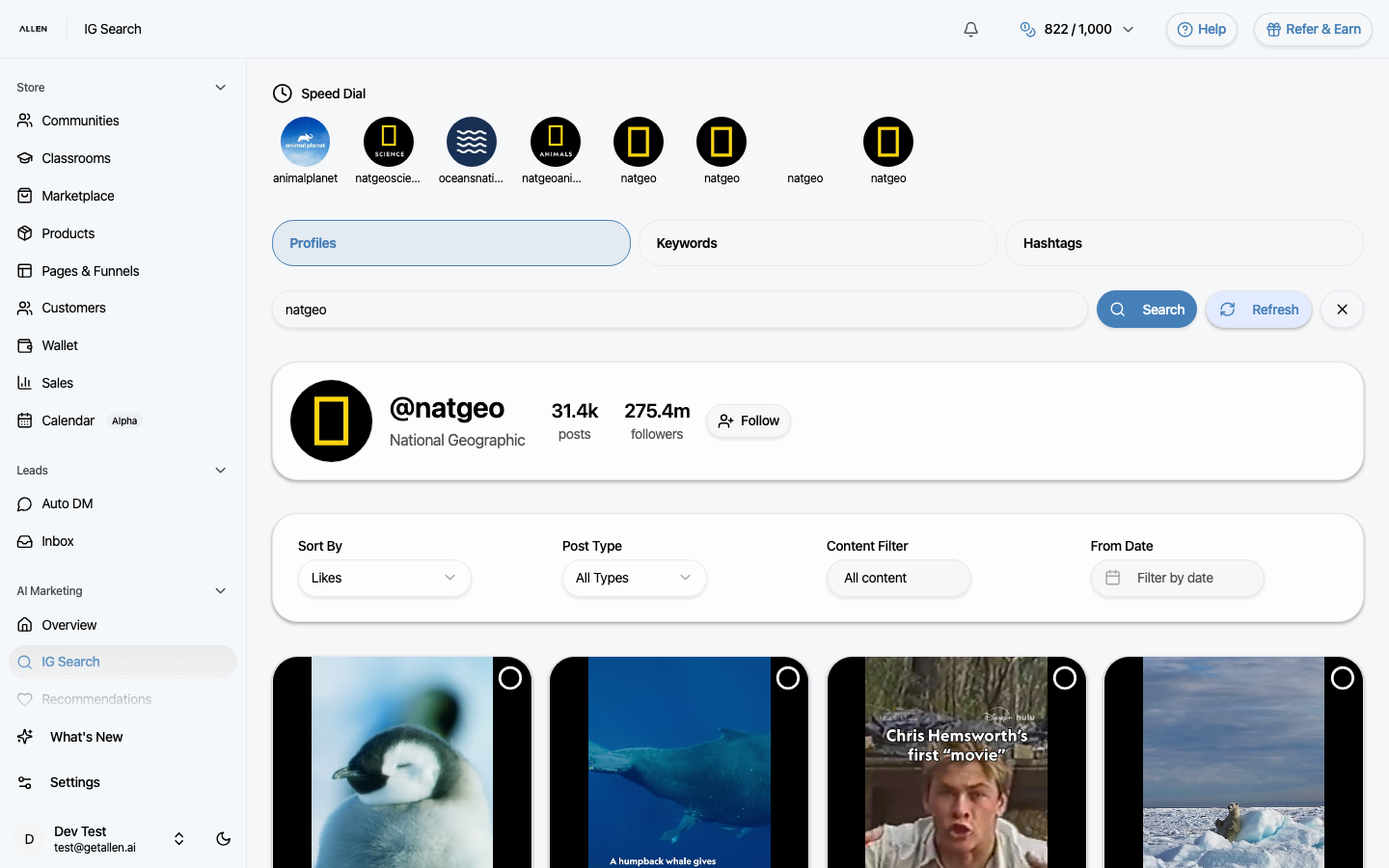
For profile searches, you'll see a profile card with follower count and bio, plus a grid of recent posts sorted by engagement. You can sort posts by likes, comments, or views. Click any post to see its details.